
Getting started
This page takes you from the download to your first AI subtitles. Playing videos works right after installing; AI subtitles need two more things: a speech model (downloaded once) and a translation model (served by Ollama).
What you need
Section titled “What you need”| Required? | Notes | |
|---|---|---|
| Windows 10 or 11, 64-bit, CPU with AVX2 | Yes | Most CPUs made since about 2015 support AVX2. |
| A speech model (Whisper) | For AI subtitles | 0.8 to 550 MiB, downloaded once. Details. |
| A translation server (Ollama) | For translated subtitles | Local or cloud. Details. |
| NVIDIA GPU (RTX 30 series or newer) | No | Speeds up speech recognition. Details. |
| Windows OCR language pack | No | Only for reading image subtitles on discs. Details. |
1. Install
Section titled “1. Install”Every release lists the SHA-256 of each file. Compare it with Get-FileHash before you run the installer.
Verify in PowerShell: Get-FileHash .\NanumPlayer-Setup-<version>.exe -Algorithm SHA256
The installer does not include speech models or the optional Blu-ray/DVD decryption components. See Getting started for what to download next.
Run NanumPlayer-Setup-<version>.exe. It installs for your user account by default and does not need administrator rights; Windows offers an all-users install if you prefer.
The installer is available in English, Korean, Japanese, Simplified Chinese, Traditional Chinese and Spanish. On the optional-tasks page you can pick speech models, the NVIDIA cuBLAS download, the YouTube tools and a desktop icon. Nothing is downloaded unless you tick it, and you can do all of it later from inside the player.
Unzip NanumPlayer-<version>-portable.zip anywhere and run NanumPlayer.exe. Settings are stored in %APPDATA%\NanumPlayer and models in %LOCALAPPDATA%\NanumPlayer\models, the same places the installed version uses.
Before you run the installer, compare its SHA-256 with the value shown above or in the release’s SHA256SUMS file. If Windows SmartScreen warns about the file, see the FAQ.
2. First run
Section titled “2. First run”- Start NanumPlayer. The interface language follows Windows (English if your language is not one of the six supported). Change it with the language button at the top right, with Ctrl+Alt+L, or in Ctrl+N → Interface language. The interface language is independent of the subtitle languages.
- Open a video with Open file (Ctrl+O), or drag a file into the window. Videos play at once, with no AI involved.
- Press Ctrl+N to open the settings menu. This is where everything lives: translation model, target language, models and acceleration, upscaling, picture quality and more. Type to search.
- Pick your translation target language in the menu. It defaults to your Windows display language and offers 33 languages plus any language name you type.
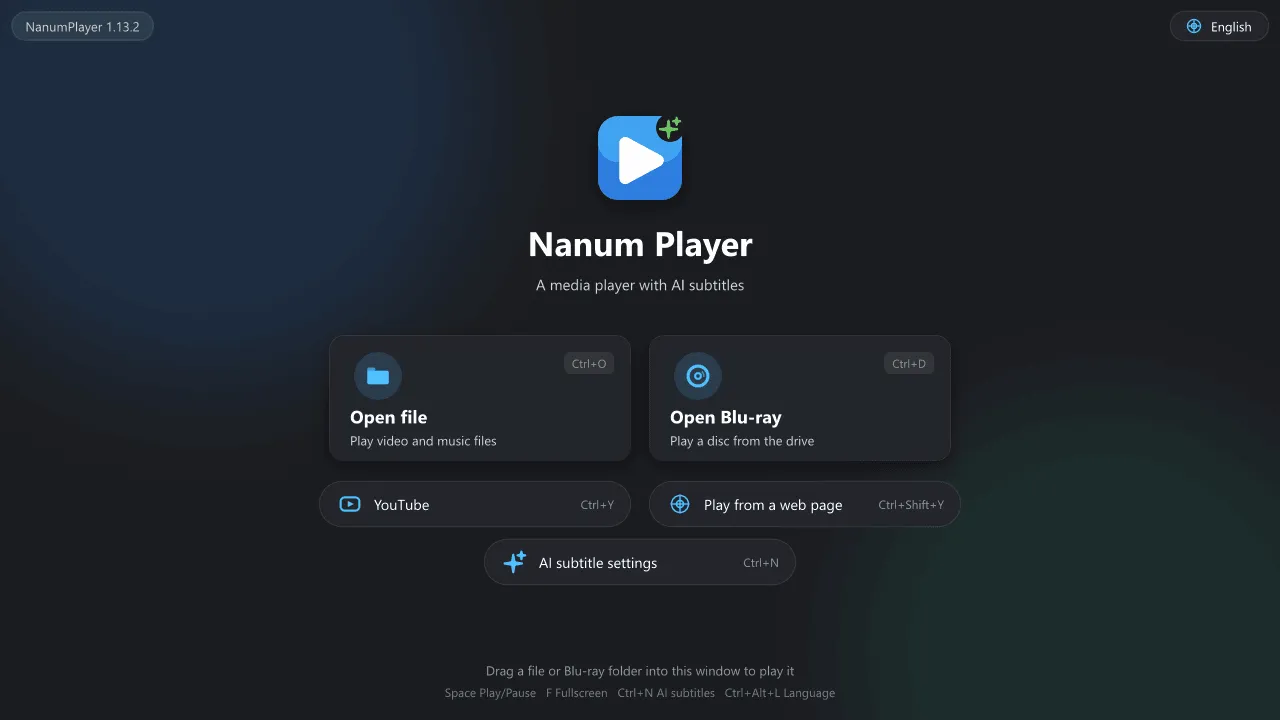
Once a speech model and a translation server are ready, open a video with spoken dialogue. NanumPlayer waits at the start of the file (30 seconds by default, shown as Preparing AI subtitles) so the subtitles can stay ahead of playback. After that the Subtitles button lists the AI track, named after what it is made from, such as Korean (based on English audio).
Speech models
Section titled “Speech models”Speech recognition uses whisper.cpp models plus a small voice-detection model (Silero VAD). They are not part of the installer, so the download stays small.
| Choice | Size | Use it for |
|---|---|---|
| English Whisper + Silero | about 466 MiB | English audio. |
| Multilingual Whisper + Silero | about 466 MiB | Any other language, and automatic language detection. |
| Multilingual high-accuracy Whisper large-v3-turbo (q5_0) + Silero | about 548 MiB | Better recognition for non-English audio such as Japanese. Used instead of the small multilingual model when installed. Needs more GPU memory. |
| Silero VAD only | about 0.8 MiB | Included automatically with any Whisper choice. |
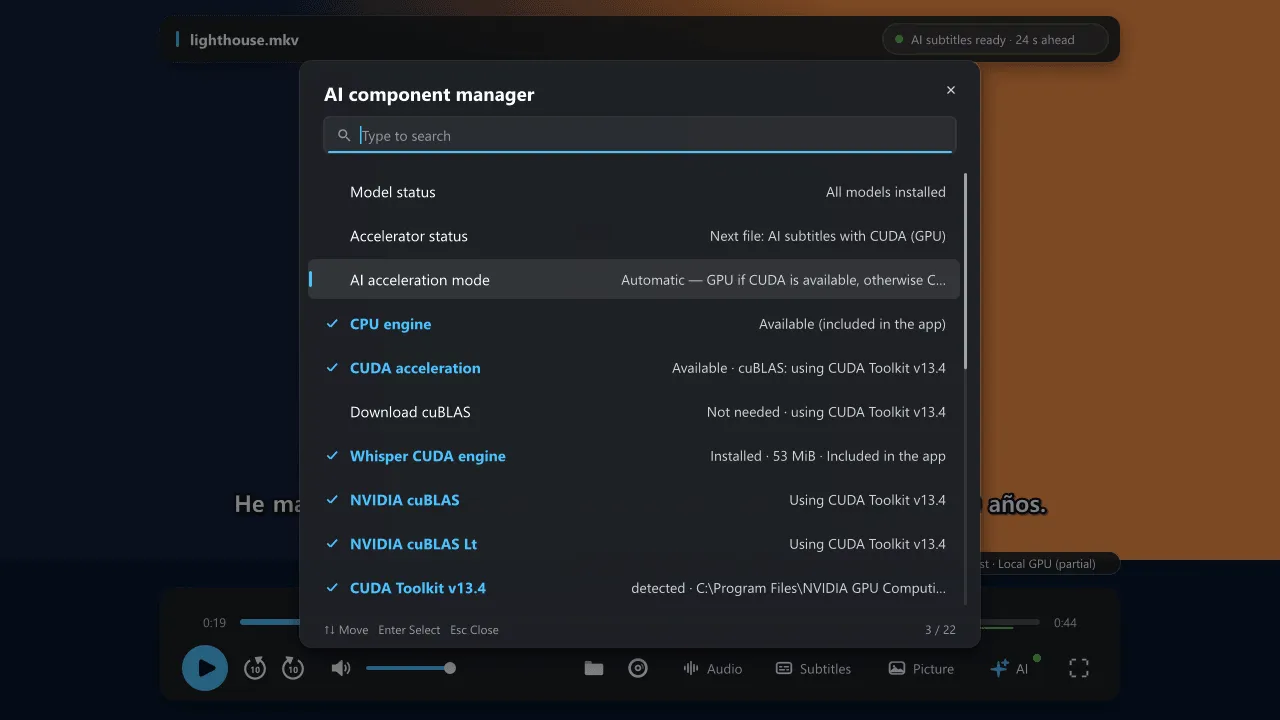
Get them at install time, or later in Ctrl+N → AI component manager. The manager shows real progress, verifies size and SHA-256 against pinned values, and lets you cancel. Closing the menu does not stop a download. Files are saved to %LOCALAPPDATA%\NanumPlayer\models, reused when you reinstall and kept when you uninstall.
Translation server
Section titled “Translation server”Translated subtitles come from an Ollama-compatible server. Ollama runs models on your own PC, or forwards to cloud models you sign in to.
-
Install Ollama and make sure it is running. After installation it starts in the background; otherwise run
ollama serve. -
Download a model, for example the default NanumPlayer expects:
Terminal window ollama pull gemma4 -
In NanumPlayer press Ctrl+N → Translation model. The list shows the models installed in Ollama, with sizes for local models, and marks cloud models. You can also type a model name.
Defaults: server http://127.0.0.1:11434, model gemma4:latest. Change the address under Ctrl+N → Translation server address. Model, server and target language apply from the next file you open; translation style, glossary and original-language subtitles apply immediately.
Choosing a model is a trade-off. Larger models translate names and idioms better but need more memory (the default is several gigabytes), and a model that does not fit in your GPU can be too slow for real-time use together with speech recognition. Smaller models of around 4 billion parameters keep up in real time on modest GPUs with lower quality. In our tests a cloud model gave the best quality. See Privacy for what a cloud model means for your subtitle text.
If the server is unreachable, lines that cannot be translated are shown in the original language, so the screen never goes empty, and the status chip reports that the server is unavailable.
GPU acceleration (optional)
Section titled “GPU acceleration (optional)”The CPU engine is built in and always works. An optional CUDA engine is also included in the installer and is used automatically when it can be.
- Requirements: an NVIDIA GPU with compute capability 8.6 or higher (RTX 30 series and newer), a current driver, and the cuBLAS libraries from a CUDA 13 Toolkit. NanumPlayer finds an installed Toolkit by itself. CUDA 12 is not enough.
- No Toolkit? Download just cuBLAS (about 507 MiB) from the installer or the AI component manager. You accept NVIDIA’s terms first; the files are verified and cached independent of the app version.
- Modes: Automatic (GPU when possible, otherwise CPU), CPU only, CUDA required. Change under Ctrl+N → AI component manager → AI acceleration mode; it applies from the next file.
- A missing GPU never disables speech recognition (the CPU engine is used) or translation.
GPU acceleration for speech recognition is separate from video upscaling, which needs no CUDA Toolkit.
OCR language packs (optional)
Section titled “OCR language packs (optional)”Blu-ray and many DVD discs store subtitles as pictures. NanumPlayer reads them with the Windows OCR engine (nothing extra is bundled) and turns them into text it can translate. The OCR engine can only recognize languages that have an OCR pack installed in Windows.
- Without an English pack, NanumPlayer falls back to an installed Latin-script recognizer, such as the one for your Windows language, and corrects common misreadings. Accuracy is lower.
- For better accuracy open Ctrl+N and choose Install the English OCR language pack (administrator, improves accuracy). Windows asks for administrator permission and installs the pack with
Add-WindowsCapability. It applies from the next file you open. You can also add a language in Windows Settings → Time & language → Language & region. - Packs are offered for English, Japanese, Korean, Chinese, French, German, Spanish, Italian, Russian and Portuguese. A Japanese track needs the Japanese pack.
Next steps
Section titled “Next steps”- Features for everything the player can do.
- Blu-ray and DVD discs: what plays out of the box and what needs the optional component.
- FAQ when something does not work as expected.