
Picture quality
The Picture button on the playback bar (or Ctrl+I, or Ctrl+N → Picture quality) opens one menu with the Correction presets, built from nine small GPU shaders (about 12.3 KiB in total) written for NanumPlayer, plus features built into mpv. The same menu holds the upscale choices. There are no AI models and nothing to download, and this is separate from any external Anime4K shader pack.
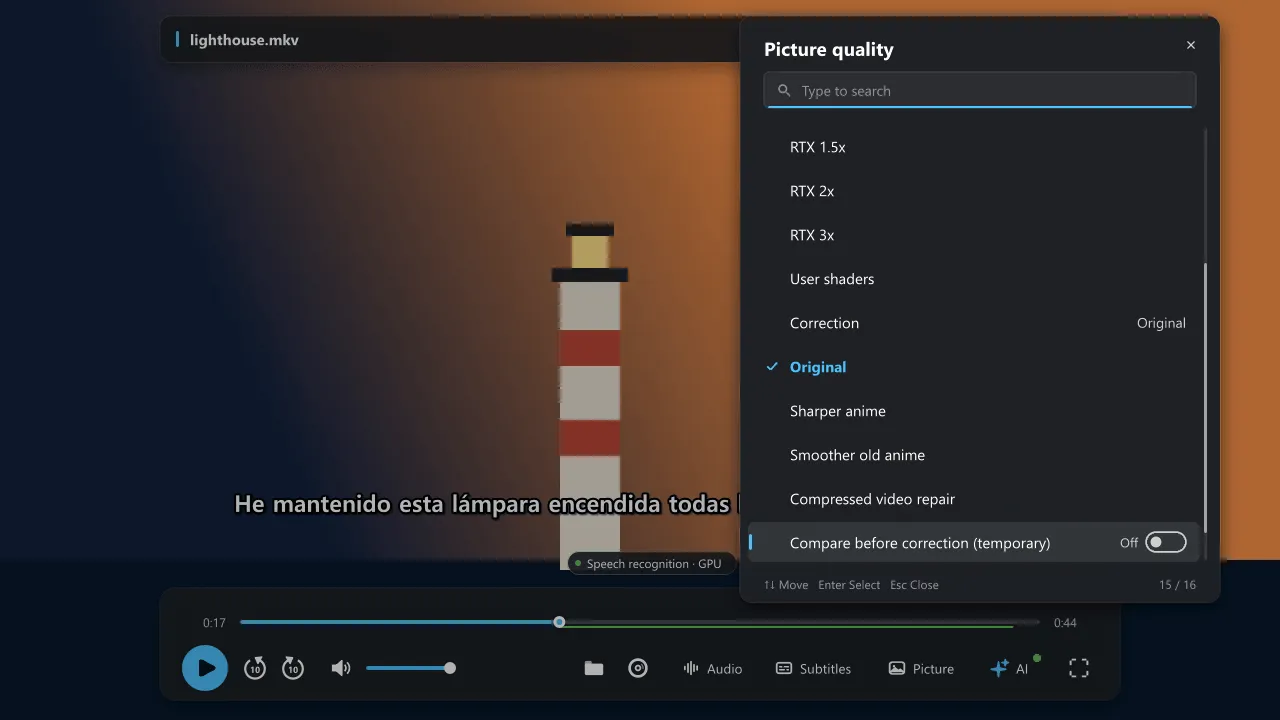
The default is Original, with no added correction. Presets: Original, Sharper anime, Smoother old anime and Compressed video repair.
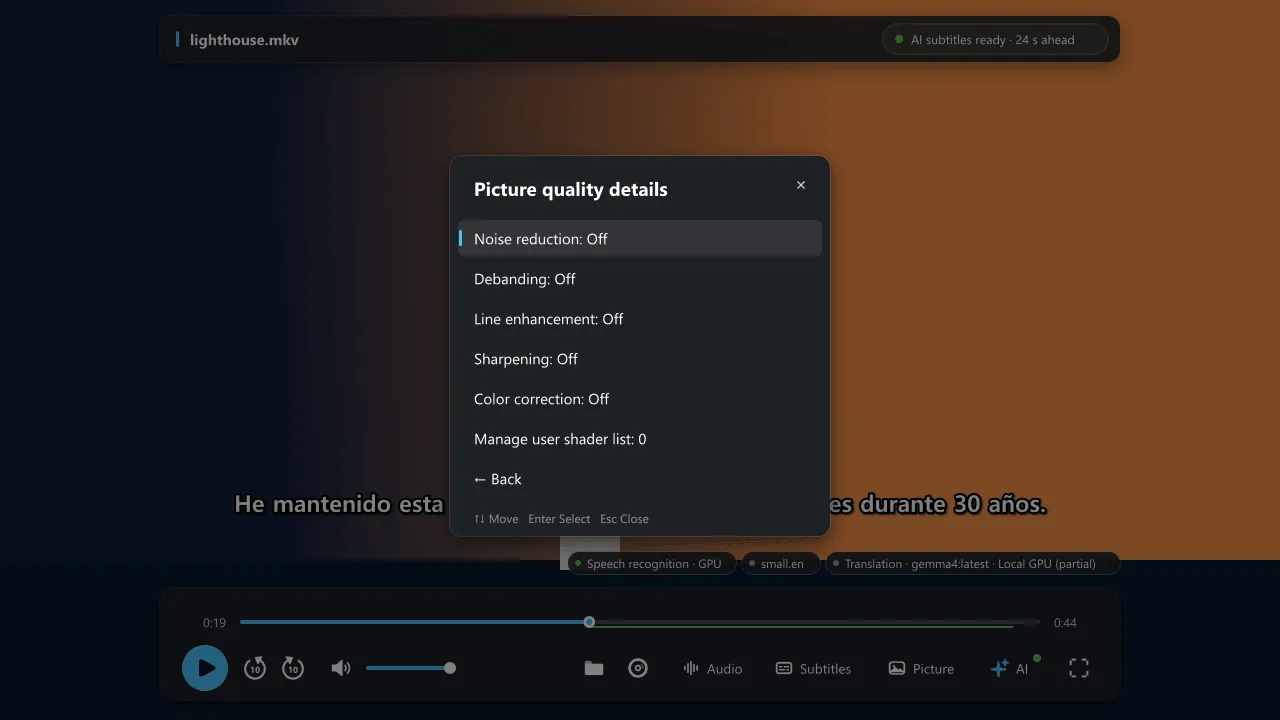
Each effect can be set to Off, Weak, Medium or Strong:
- Noise reduction: an edge-preserving spatial filter that reduces small noise in flat color areas. Strong settings can erase background texture.
- Debanding: reduces visible steps in gradients.
- Line enhancement and sharpening: darkens dark lines slightly, or sharpens within a limited pixel range. This does not redraw lines with AI.
- Color correction: raises saturation and contrast a little from your existing settings. It does not estimate original colors or unify character coloring.
Individual changes are saved as a custom combination. Compare before correction temporarily switches off only these corrections (upscaling and your own filters stay) and is not saved. Choosing Original switches the corrections off and saves that choice.
With RTX upscaling
Section titled “With RTX upscaling”When you choose NVIDIA RTX upscaling, line enhancement and sharpening pause automatically to avoid sharpening twice, and come back when you leave RTX. Noise reduction, debanding and color correction can stay on. NanumPlayer cannot tell what your custom shaders do, so avoid doubling up sharpening yourself.
Requirements and limits
Section titled “Requirements and limits”- Needs the
gpu-nextorgpuvideo output. Unsupported output or shader errors show in the menu. Settings live inscript-opts\nanum-picture.confand existing filters and shaders are preserved. - These are real-time spatial filters. Flicker reduction between frames, AI recoloring and redrawing in a modern style are not included.
- With HDR, high resolution and concurrent AI subtitles, compare quality and playback load against Original.