
AI subtitles
AI subtitles are made while you watch, from the audio of the video (or from an existing text subtitle), and shown as an ordinary subtitle track. They are built into the player, not a separate process.
video / disc ─▶ demuxer (reads ahead N seconds) ├─▶ normal playback └─▶ copy of the audio packets ─▶ speech recognition (Whisper, with voice detection) ─▶ translation (your Ollama model) ─▶ subtitle lines with exact timestamps ─▶ shown by the normal subtitle rendererBecause the player reads ahead (120 seconds by default), the subtitles arrive before the dialogue is played. At the start of a file NanumPlayer waits for a short pre-roll (30 seconds by default) and then plays.
Where the text comes from
Section titled “Where the text comes from”NanumPlayer picks the input source automatically and you can change it in Ctrl+N:
- If the audio language is known and there is a text subtitle in that language (embedded, or an external file such as
movie.en.srt), that text is translated. This is faster and exact. - Otherwise the audio is recognized by speech recognition. Forced and commentary tracks are skipped.
- Image subtitles (PGS) are handled by OCR, not by this path.
If the video already has a subtitle in your target language, it is selected automatically and no AI work is done for that file (you can turn this off).
Two tracks: playing audio and original language
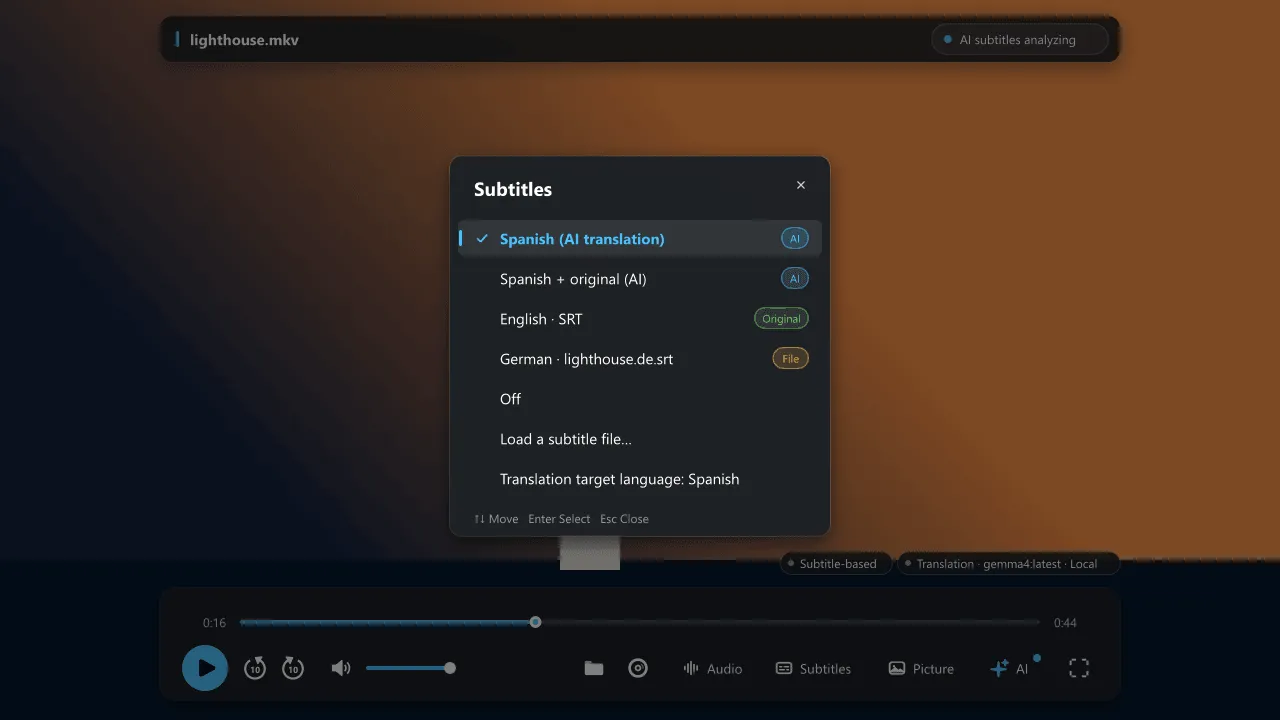
Section titled “Two tracks: playing audio and original language”When a disc or file has several audio languages, for example a Japanese film with an English dub, NanumPlayer first makes subtitles from the audio you are playing, for example Korean (based on English audio). At lower priority it also makes a track from the original-language audio, for example Korean (based on Japanese audio). The original language is determined from the title and the audio language list. Both tracks come from the same read of the disc, so no extra disc reading is needed. Pick either one in the subtitle list. You can turn this off in Ctrl+N.
Display modes
Section titled “Display modes”- Translation only (default).
- Translation + original, showing the recognized original under each line.
- Original only.
Changing the mode does not rerun recognition or translation. Lines that could not be translated are shown in the original language so the screen does not go blank.
Status and seeking
Section titled “Status and seeking”The chips above the playback bar show how the current track is made: speech recognition on GPU or CPU, the speech model, and the translation model and where it runs. Click a chip to open the matching setting. Ctrl+K shows a detailed status.
Seeking restarts recognition at the new position. After a timeline or arrow-key seek NanumPlayer does not pause to wait; subtitles for a not-yet-analyzed stretch can arrive a little late.
Whole-file translation (optional)
Section titled “Whole-file translation (optional)”With full translation enabled, a separate reader collects the whole transcript and translates it in context together with the glossary, producing a complete subtitle track that is selected automatically. The engine is the same Ollama server by default, or oh-my-pi (omp) with a model you are signed in to. Live translation always uses Ollama.
Limits worth knowing
Section titled “Limits worth knowing”- Quality depends on the speech model and on the translation model you choose. Small multilingual models can misrecognize Japanese; install the high-accuracy Whisper large-v3-turbo for better results (it needs more GPU memory).
- A local model that is too big for your GPU can time out while speech recognition runs at the same time.
- Names and invented terms can be wrong until you correct them in the glossary.
- By default nothing is saved. Subtitles are generated again the next time you play the video. See Privacy.